Showing posts with label accessibility. Show all posts

Friday, 23 September 2016

New in iOS 10: Magnifier

Magnifier captured an image of a keyboard and user applied yellow/blue high contrast mode 15x magnified keyboard key using Magnifier

Apple's newly released mobile operating system includes a new accessibility feature called Magnifier. The feature uses the device's built-in camera to enlarge objects placed in front of the camera. This can be helpful for people with visual disabilities who need to read small print. The feature can be enabled by navigating to Settings > General > Accessibility > Magnifier. Once enabled, Magnifier can be accessed by triple clicking the home button.

Magnifier's interface looks very similar to the camera apps interface with a few notable changes. One change is that Magnifier has a freeze frame button rather than a shutter button. Pressing this button freezes the image instead of taking a picture. Magnifier also has a zoom slider that is large and always visible on screen. The zoom slider allows users to zoom in further than is possible with the camera app. Magnifier allows users to zoom in up to 15x compared to 5x with the camera app (iPhone 7 Plus has optical zoom). However, the further a user zooms in the more pixelated the image will become. Magnifier also includes several high contrast options that can be applied before or after a freeze frame is captured.

Magnifier has several advantages over taking a picture with the camera app and then enlarging the image from the camera roll. The first advantage is that freeze frames are captured in full resolution. This means that users can zoom out after the freeze frame is capture. In the camera app, once a picture is captured using zoom there is no way to zoom out again. Another advantage of Magnifier is the high contrast modes that are available. Lastly, opening Magnifier by triple clicking the home button means that it is faster to launch than third party magnification apps.

There is one feature that unfortunately is not included in Magnifier which is the ability to save freeze frames for viewing at a later time. For example, if a person uses Magnifier to read a conference agenda the person may need to take multiple freeze frames of the agenda through out the day because only the most recent freeze frame can be saved.

It also may be difficult for some people to capture crisp images with Magnifier. At 15x zoom, even the slightest shake can make the image blurry. I wish Apple had added a capture timer to Magnifier. This could help eliminate minor shaking that occurs when a user reaches for the freeze frame button.

Overall, I think Magnifier will be greatly appreciated by people with visual disabilities and older people who have trouble reading small print.

Tuesday, 21 July 2015

Inspiration Maps Updated with iPhone Support and More

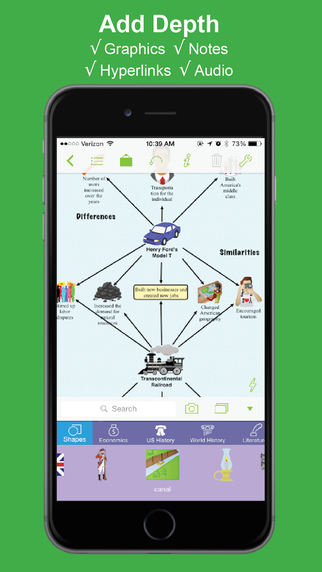
Inspiration Maps displayed on iPhone 6

Inspiration Maps iconThe mind mapping and outlining app Inspiration Maps, which was previously only available on the iPad, is now available on the iPhone as well. The app is a valuable tool to help students organize their ideas and start the writing process. Users can drag text boxes around the screen to easily produce webs of ideas. Inspiration Maps is particularly helpful when writing about complex topics that require a well planned and organized essay. Inspiration Maps can be also be helpful when beginning an essay to visualize the structure that the written piece will take.

With the larger screen iPhone 6 and iPhone 6 plus in makes sense to bring the app to the iPhone. If you are concerned about not having enough room to effectively use the app on your iPhone, a free version is available here.

The update also makes in easier to select multiple text boxes or images at the same time. Now users can press and hold on the screen in order to lasso a group of images.

The updated app is available for $10 is the App Store. Click here to download the app. Click read more below to view more screenshots of Inspiration Maps for iPhone.


graphic highlighting brainstorming

screenshot showing ability to add graphics, notes, hyperlinks, and audio

screenshot showing the ability to flip between web and outline view

Tuesday, 23 December 2014

MotionSavvy's UNI Tablet: A Break Through in Sign Language Communication


For people who use sign language to communicate, interacting with people who do not know sign language can be an enormous challenge and create barriers for people who are hearing impaired. Until now, the best alternative might have been writing out notes on a piece of paper. However, an upcoming product from a company called MotionSavvy hopes to offer a better solution.

The solution does not look like the advanced piece of assistive technology that it is, but rather looks like a thin tablet with a Leap Motion device attached to the front. The Leap Motion senses the motion of the users hand to recognize signs using multiple cameras. Once the table recognizes the signs it can display the signed phrase as text on screen or even as spoken words with text-to-speech. This allows the other person that does not know sign language to understand what is being signed. Then the other person can speak into the tablet and speech recognition technology will allow the words to appear on the screen for the hearing impaired person to read.

This technology can allow deaf and hearing impaired users to communicate with other people that do not know sign language without an interpreter or slow hand written messages. However there are some limitations that should be expected from a first generation product such as the UNI. Users will not be able to use their existing tablet with the software and will need to purchase both the Leap Motion device and accompanying Windows tablet and case through MotionSavvy. Also, the system may have difficulty interpreting the nuances of different sign language styles. Additionally only American Sign Language (ASL) will be supported initially. Luckily, MotionSavvy will include a feature to allow people to teach the device how to recognize new signs. With a feature called CrowdSign, the signs imported by one user can be shared with other users of the system. This will allow the library of recognizable signs to increase quickly provided users are willing to create and share their imported signs. However, because of the upkeep needed to maintain the CrowdSign features, users will need to pay a monthly fee to use the UNI tablet.

The MotionSavvy UNI tablet is expected to be released in early 2015. At this time, details on pricing are unclear, but MotionSavvy has said that the UNI will sell for more than $500 when released.

Saturday, 6 September 2014

What a Larger Screen iPhone Means for Accessibility


The general consensus is that Apple will introduce new iPhones with larger screens in a few days. With many people with disabilities using Apple's flagship device for their accessibility needs a change can have a large impact on users. From a software prospective iOS 8 will offer many accessibility improvements, but hardware is also an important aspect of accessibility. The larger screen will certainly benefit some users with special needs, but may also cause problems for others.

Users with low vision may benefit the most from the larger viewing area. On current iPhones, with large text enabled, only a small amount of text is able to fit on screen. A larger screen will allow more text to fit on screen requiring less scrolling for users who prefer or require large text. The large screen will also give VoiceOver users more space to use three or four finger gestures.


On the other hand a larger screen iPhone may pose a challenge. Users with physical challenges may have a difficult time reaching all the controls. Also users who prefer using their phone in one hand and users who can only use one hand to operate their phone may find it difficult access all areas of the screen. It is possible that Apple will come up with a software solution to these possible challenges, making one handed use a breeze. 

When Apple introduced the iPhone 5 it claimed that the larger screen was a perfect size for one handed, use so it will be interesting to see how the next iPhone is marketed.

People who use Apple devices as assistive devices should be excited about the company's upcoming announcement. Regardless of any hardware changes Apple's iOS 8 includes unmatched accessibility features for people with a variety of needs. The potentially larger screen size will likely benefit most users. The benefits and trade-offs of larger screen phones has been explored with Android phones for years, and hopefully Apple has been able to iron out any lasting challenges. Aside from the form factor, Apple may introduce new software or hardware features that impact people with disabilities at their event. Stay tuned for information about how Apple's announcements impact accessibility.

Monday, 11 August 2014

Indoor Navigation System Will Soon Guide Blind Passengers at SFO


Imagine how difficult it would be to navigate a bustling airport terminal as a person with a visual impairment. Navigating security, finding baggage check, and finding the correct gate all while trying to make a last minute flight is daunting for even the most seasoned travelers. San Francisco International Airport (SFO) will soon implement a system to help guide blind and visually impaired travelers from curb to gate. Starting with Terminal 2 this fall, the airport will install some 500 iBeacons for a trial. Current solutions such as GPS do not work well indoors because they are unable to provide precise location information, but beacons allow more precise locationa. When a user with the indoor navigation app walks by a beacon it communicates with the user's smartphone and transmits the location. With the location information sent from the beacon, the app can then guide users to restrooms, restaurants, boarding gates, baggage claims, and even charging stations. Initially the app will only run on iOS devices, but Android devices will likely follow. The system runs off Bluetooth technology which should have minimal impact on battery life. For blind users, points of interest and navigation instructions are read aloud using VoiceOver.

If the trial in Terminal 2 is successful, it is likely that the program will expand to more terminals and more airports. This system, powered by a company called indoo.rs, is a promising development for indoor navigation. In the near future, it is conceivable that similar systems will help people with visual impairments navigate shopping malls, schools, or hospitals. The technology will also benefit sighted users who have trouble finding locations in the vast terminal. If your traveling through SFO Terminal 2 this fall give it a try.

Thursday, 17 July 2014

Too Much Background Noise when Recording Lectures with Smart Phone or Table Built-in Microphone? Check Out the Ampridge MightMic


Mobile devices are convenient tools that students use to record classes and lectures, reporters use to record news conferences, and business people use to record meetings. Some use note taking apps like Notability, Remarks, or Livescribe+ to augment their notes with audio recordings. The benefits of recording the audio can be minimized by poor quality recordings from built-in microphones.

Built-in microphones tend to do a poor job of isolating sounds which results in background noise that makes the desired sounds difficult to hear, especially for people with hearing impairments.

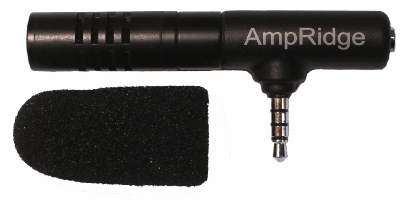
The AmpRidge MightyMic microphone plugs directly into the headphone jack of any smartphone, tablet, or computer that supports microphone input. It proves an alternative audio output jack so users can still plug in headphones while the microphone is plugged in. Its compact size makes it easy to use in class and makes in relatively discrete. The MightyMic microphone works well with an iPhone and is only slightly longer wider than the width of the phone. The microphone  even worked fine with my bulky iPhone case. Once plugged in you can angle the microphone towards the front of the room to capture the most important sounds. In my testing, the MightyMic microphone was on par with the built-in iPhone microphone for close range recording, but worked considerably better than the built-in microphone in a classroom or outdoor long range environment. The MightyMic microphone reduced background noise resulting in better sounding audio playback. If you frequently record classes, lectures, or meetings and are less than satisfied with your device's built-in microphone, the MightyMic mic is a good option to give your sound a boost. If you're looking for a big improvement in sound quality quality you may have to look towards more expensive options.

The Ampridge MightyMic retails for $70 on AmpRidge.com. Also included is a protective carrying pouch and foam protective cover.


Product was provide complimentary to reviewer for review