Showing posts with label first set. Show all posts

Friday, 23 September 2016

New in iOS 10: Magnifier

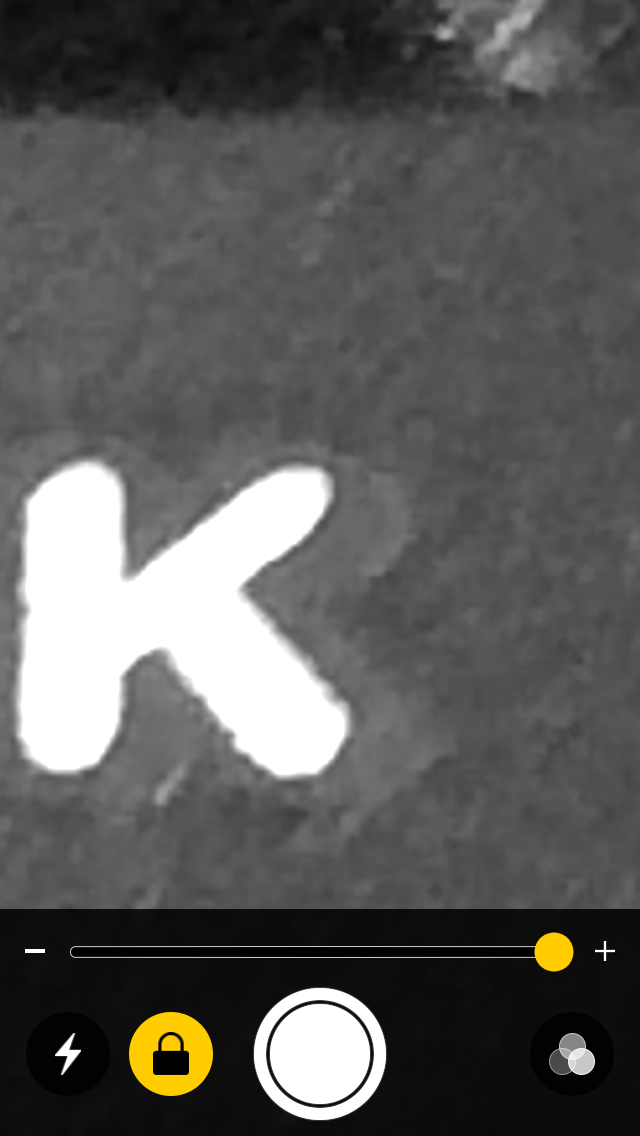
Magnifier captured an image of a keyboard and user applied yellow/blue high contrast mode 15x magnified keyboard key using Magnifier

Apple's newly released mobile operating system includes a new accessibility feature called Magnifier. The feature uses the device's built-in camera to enlarge objects placed in front of the camera. This can be helpful for people with visual disabilities who need to read small print. The feature can be enabled by navigating to Settings > General > Accessibility > Magnifier. Once enabled, Magnifier can be accessed by triple clicking the home button.

Magnifier's interface looks very similar to the camera apps interface with a few notable changes. One change is that Magnifier has a freeze frame button rather than a shutter button. Pressing this button freezes the image instead of taking a picture. Magnifier also has a zoom slider that is large and always visible on screen. The zoom slider allows users to zoom in further than is possible with the camera app. Magnifier allows users to zoom in up to 15x compared to 5x with the camera app (iPhone 7 Plus has optical zoom). However, the further a user zooms in the more pixelated the image will become. Magnifier also includes several high contrast options that can be applied before or after a freeze frame is captured.

Magnifier has several advantages over taking a picture with the camera app and then enlarging the image from the camera roll. The first advantage is that freeze frames are captured in full resolution. This means that users can zoom out after the freeze frame is capture. In the camera app, once a picture is captured using zoom there is no way to zoom out again. Another advantage of Magnifier is the high contrast modes that are available. Lastly, opening Magnifier by triple clicking the home button means that it is faster to launch than third party magnification apps.

There is one feature that unfortunately is not included in Magnifier which is the ability to save freeze frames for viewing at a later time. For example, if a person uses Magnifier to read a conference agenda the person may need to take multiple freeze frames of the agenda through out the day because only the most recent freeze frame can be saved.

It also may be difficult for some people to capture crisp images with Magnifier. At 15x zoom, even the slightest shake can make the image blurry. I wish Apple had added a capture timer to Magnifier. This could help eliminate minor shaking that occurs when a user reaches for the freeze frame button.

Overall, I think Magnifier will be greatly appreciated by people with visual disabilities and older people who have trouble reading small print.

Tuesday, 13 September 2016

New in iOS 10: Software TTY Calling

Software TTY call on iPhone

Apple's updated mobile operating system, iOS 10, includes many new accessibility features. One of these features is Software TTY calling. TTY calling allows people who are deaf and people with hearing disabilities who cannot communicate using voice calling to communicate with people by using voice calling through relay services. The TTY user with a hearing impairment types a message and a relay operator reads that message aloud to the person on the other end of the phone call, who does not have a hearing impairment. When the person on the other end of the phone call speaks the relay operator types what is spoken and the text then appears on the TTY device.
physical TTY machine
Previously, this communication method required a physical TTY machine such as the one pictured above. These machines are large and much less convient to carry around than an iPhone. With iOS 10, Apple is building the functionality of a TTY machine into the iPhone. This eliminates the need for people who rely on TTY calling to have a physical TTY machine.

Software TTY calling on the iPhone works much like an iMessage conversation with a few differences. When software TTY is enabled, the user makes or receives a phone call through the Phone app. Once the user dials the number and presses send the user has the option of placing the call as a voice call, TTY call, or TTY relay call. TTY relay calls will be placed using the relay number specified in settings. If the user chooses one of the TTY options they will be able to access the TTY interface which resembles an iMessage chat. iOS even suggests TTY abbreviations above the keyboard during the conversation such as GA for go ahead and SK for ready to hang up.

With voice calling on the iPhone users can press the home button during a call to access other apps while still talking to person on the other end of the call. I frequently use this feature when placed on hold. While on hold I will check my email or read the news. However, with software TTY calling, users are not notified when new TTY messages are received while using other apps. For example, if  software TTY users wants to check their email while on hold they will not be notified when the next message is received. This means that TTY users might miss incoming messages when multitasking. I would prefer that the feature send notifications when the user is multitasking to alert the user that a new TTY message is received. Much like iMessage sends notifications to users when a new message is received. This would allow TTY users to multitask without fear of missing a message.

The software TTY feature of iOS 10 is a great addition to the iPhone. I think it will be viewed as a major upgrade for TTY users. iOS 10 users who want to enable software TTY should navigate to Settings > General > Accessibility > TTY and then switch on software TTY. This menu also gives users access to other TTY settings such as setting the relay number. 

Monday, 15 February 2016

New Add-On for OneNote Benefits Students with Dyslexia


Microsoft OneNote Icon
Microsoft recently made a new add-on available for its OneNote software which aims to help students with dyslexia. The add-on works within Microsoft's note taking software and is currently available to download as a beta. Once installed, a new tab appears which gives users the option to read content using text-to-speech or dictate using speech-to-text. While both of the features have been available before it is nice to have a free option that can be used directly within OneNote: an application that many schools and parents already have installed as part of the Microsoft Office suite.


The text-to-speech reader mode is called "immersive reading mode" and includes some handy features. When activated the reader fills the entire screen with text from your OneNote notebook. While reading text is highlighted as it is read aloud. Users have the option to change the background color and text size in order to create a more comfortable reading experience. The add-on also includes the ability to highlight nouns, verbs, and adjectives in different colors; a feature that could be helpful for younger students. Microsoft even includes the ability for users to break words up into syllables.

It is exciting to see the fruits of Microsoft's enhanced accessibility initiatives. While the new features are not novel they seem easy to learn. Since the "Learning Tools" are free for OneNote users and easy to learn they may prove to be a great starting point for people new to assistive technology. Microsoft seems to be increasing their focus on accessibility. Recently, the company announced a new Chief Accessibility Officer and a reorganization of accessibility teams. Hopefully, with the new reorganization, "Learning Tools" is just the beginning of Microsoft's accessibility improvements.

The "Learning Tools" add-on available as a free download for Windows. Click here to learn more and download the add-on.

Tuesday, 21 July 2015

Inspiration Maps Updated with iPhone Support and More

Inspiration Maps displayed on iPhone 6

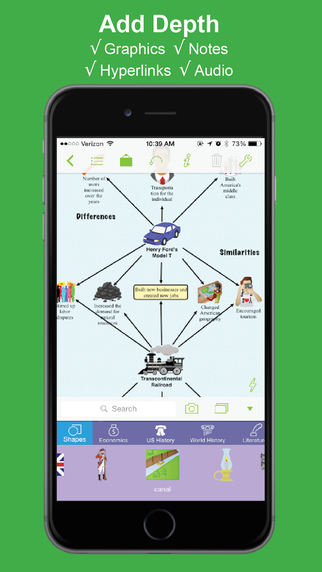
Inspiration Maps iconThe mind mapping and outlining app Inspiration Maps, which was previously only available on the iPad, is now available on the iPhone as well. The app is a valuable tool to help students organize their ideas and start the writing process. Users can drag text boxes around the screen to easily produce webs of ideas. Inspiration Maps is particularly helpful when writing about complex topics that require a well planned and organized essay. Inspiration Maps can be also be helpful when beginning an essay to visualize the structure that the written piece will take.

With the larger screen iPhone 6 and iPhone 6 plus in makes sense to bring the app to the iPhone. If you are concerned about not having enough room to effectively use the app on your iPhone, a free version is available here.

The update also makes in easier to select multiple text boxes or images at the same time. Now users can press and hold on the screen in order to lasso a group of images.

The updated app is available for $10 is the App Store. Click here to download the app. Click read more below to view more screenshots of Inspiration Maps for iPhone.


graphic highlighting brainstorming

screenshot showing ability to add graphics, notes, hyperlinks, and audio

screenshot showing the ability to flip between web and outline view

Friday, 3 July 2015

Bright Future for Apple Accessibility with Lisa P. Jackson in the Lead

Headshot of Jackson wearing red shirt

Apple recently updated the bio of Lisa P. Jackson to reflect her new role overseeing accessibility at Apple. This expands her previous responsibilities of overseeing environmental initiatives at Apple. Ms. Jackson's official title is now Vice President of Environment, Policy and Social Initiatives. Apple CEO Tim Cook has been vocal regarding his views of the importance of accessibility. This new management change, which puts a Vice President level executive in charge of accessibility for the first time, seemingly reaffirms Apple's long-standing commitment to accessibility.

Apple has been a leader in accessibility. Its products include superior accessibility features out of the box. Features such as VoiceOver, Speak Selection, Zoom, AssistiveTouch, and Switch Control give people with disabilities equal access to Apple products at no additional charge. From personal experience I can say that these features are truly life changing and positively impact many people.

Even considering Apple's past success there are areas for possible improvement. One example involves training sales people about the accessibility features. On recent trips to Apple Stores, I have had some experiences that are not consistent with Apple's commitment to accessibility. For example, the Apple Watch on display had its accessibility features disabled. While Apple likely wants to limit confusion for customers who do not use accessibility features, this does not promote equal access. Part of the magic of the Apple Store is being able to walk up to a shinny new product and try it out. With the accessibility features disabled, and the sales people unfamiliar with how to enable these features, users with disabilities don't have an opportunity to fully explore the product. Apple should be showing off these features, not hiding them. Apple would be doing a great service to its customers with disabilities to prepare its store employees to talk about accessibility features as well as they talk about other features.

Ms. Jackson has proven herself to be a very capable leader.  She has the ability to continue Apple's accessibility superiority and solve existing challenges. Her work on environmental initiatives has been very successful, propelling Apple towards the top of the technology industry in terms of sustainability. The future of Apple product accessibility seems bright, and I am excited to see what innovations come next.

To read Lisa Jackson's full bio from Apple click here. Photo credit: Apple.

Saturday, 14 March 2015

Apple Watch Accessibility: Possibilities, Challenges, and Unknowns


When the Apple Watch launches next month it will mark the launch of Apple's first new product category since the iPad. The iPad was a game changer in terms of accessibility, bringing numerous features designed for people with disabilities at launch. How will the Apple Watch compare and what are some of the challenges and possibilities for the Apple Watch related to accessibility? A lot of questions remain unanswered, but the wait will soon be over.

Apple Watch is rumored to include built-in software accessibility features when launched, however these reports have not been confirmed by Apple. It would make sense and align with Apple's patterns if they included features such as VoiceOver and Zoom in the Apple Watch. While the inclusion of these features seem likely, how these features are implemented will be key for people with disabilities.

The Apple Watch could prove beneficial to people with various disabilities. Apple has already demonstrated the navigation capabilities of the Watch which include providing distinctive taps when a wearer needs to turn left or right while walking. This feature could aid blind and visually impaired users when navigating unfamiliar areas. Additionally, the device could help remind users to complete daily tasks like taking medication. The watch, which can be used for Apple Pay purchases and other forms of authentication could benefit users with physical disabilities who cannot handle a credit card for example.

Just like with the iPad, app developers will likely be key in coming up with unique assistive apps. The initial developer tools have some limitations that could hold back developers, but hopefully useful assistive apps will still be made available.

With all the potential benefits there are some challenges that stem from the device's small screen and buttons. First, the "digital crown," which is a small dial on the side of the Apple Watch, could pose challenges to users with physical disabilities and dexterity challenges. The "digital crown" which is used for scrolling and zooming may be difficult if not impossible for some people to operate. It will be interesting to see if Apple will devise a software solution to this potential challenge. Similarly, the small screen with small icons may prove difficult to press for some users.

Apple's new "force touch" gesture could also prove challenging for users with physical disabilities to preform. A "force touch" is a harder press on the touch screen display that invokes distinct actions from a lighter tap. From Apple's demonstrations, this gesture seems vital to the operation of the watch so hopefully a software solution will be available for users who are unable to preform this gesture.

Hopefully the Apple Watch will follow in the iPad's foot steps and be a game changer in terms of accessibility. If you are thinking of purchasing the Apple Watch, but have doubts about your ability to interact with the device due to a disability I would strongly recommend heading to an Apple Store in April to try one out.

Thursday, 29 January 2015

Voice Dream Writer: Word Processing Plus a Whole Lot More


Voice Dream has become a well-known name in the assistive technology community because of Voice Dream Reader: a text-to-speech reader available for iOS devices. Now the developer has released a new app called Voice Dream Writer which aims to support writers with special needs. Voice Dream Writer has features that can benefit people with a wide range of needs including people with dyslexia and people who are blind or visually impaired. People without disabilities can also benefit from the app. For example, english language learners could benefit from spoken feedback and other features offered by Voice Dream Writer. 

The text-to-speech feedback is designed to help writers find mistakes in their writing. The style of text-to-speech reading can even be changed to help writers focus either on spelling and grammar, or on content and organization. The app also offers easy access to an outline view that can help with organizing a document. Other features allow users to look up words phonetically or look up words by its meaning. 

The text-to-speech feedback can be accessed as users type so they can verify that a word or sentence was entered as they intended. This helps writers identify words or phrases that looked correct, but upon hearing them read aloud sound incorrect. The app will also read back text that has been dictated to help users insure that their voice was transcribed correctly.

When it is time to review a document, Voice Dream Writer includes some very thoughtful features for editing. The app includes two customizable proof reading modes that use text-to-speech to help with the editing process. The first is designed to help writers edit the content of their document. In this mode words are read back using text-to-speech sound natural and smooth: as they would when reading a book with Voice Dream Reader. This allows writers to focus on the content and organization of their document. 

The second mode reads text back in a somewhat choppy manner which allows users to focus their document at the micro level. This mode is ideal for editing spelling a grammar because the lack of flow with the text-to-speech voice makes it easier to focus on each word rather than the overall content of the text.

Each proofreading mode is customizable with options to announce misspelled words, spell homophones, and speak punctuation and capitalization.

Similar to Voice Dream Reader, Voice Dream Writer includes the ability to change the visual style of the app. Font size, character and line spacing, margins, text color, and background color can all be changed. Additionally, users can change the text to speech voice and speaking rate to match their preferences. Text-to-speech voices purchased in Voice Dream Reader are available in the Writer without an additional purchase. The pronunciation dictionary also syncs between the Writer and the Reader if both are installed on the same device.

Text files can be imported from iCloud Drive or supported third party services such as Google Drive or Dropbox. Unfortunately, users can only import text files and not Microsoft Word files. Documents can be exported as HTML, RTF, Microsoft Word, or Apple Pages format.

Click read more below to continue to read the review of Voice Dream Writer. Some of the most innovative and helpful features will be described below.

Some of Voice Dream Writers most helpful features can be found in the right sidebar menu. First is a dictionary which can read back the definitions of a word (This feature is currently not available in Voice Dream Reader without using VoiceOver). The second tool allows users to enter a word spelled phonetically to find the correctly spelled option.  For example, if I typed "receat," it   might suggest the word "receipt," as an option. Unlike some other apps, these suggestions are not made based on the context of the surrounding text. Users can tap on each suggestion to hear the word spoken aloud. This feature is extremely helpful for poor spellers, especially when they are in a situation where using dictation would be inappropriate or unavailable. 

The last feature on the right sidebar is the option to look up a word by meaning. For example, if I was writing about organizations which donate money to charities, but could not think of the word "philanthropic" I could search "donate money" and "philanthropic" would be one of the suggestions. This can help reduce instances of a word being at the tip of your tong, but you can quite think of the word.

In the left sidebar menu is an outline view. Users can select to view an outline of their document by heading, paragraph, or sentence. Users can then simply rearrange paragraphs or headings by dragging and dropping. This is helpful for the planning stages of writing as users can plan different paragraphs and fill in the content after they are finished planning.

All formatting in Voice Dream Writer is done using markdown. This means that all editing is done in plain text, but symbols inserted before or after words cause the words to be formatted when the file is exported. For example, adding a # or * before a word will cause that word to be formatted as a heading or as italic font when exported. This system has some positives and some negatives over conventional formatting that is found in Microsoft Word and Apple's Pages. 

For blind users this system can be helpful because the special characters such as # and * will be spoken allowing them to quickly recognize when a portion of text is bold or italics. In other word processors italics and bold text may be read normally making it more difficult for blind users to determine how the document is formatted. However, for sighted users this system may be unfamiliar and therefore more difficult. It would be nice if Voice Dream Writer had both the option of using markdown and for editing in rich text and allowed the users to decide which option worked best for their needs.

Finally, Voice Dream Writer includes a new innovation which improves the text selection and cursor movement process for VoiceOver users. These tasks are normally difficult for VoiceOver users. VoiceOver is a built in screen reader available on iOS devices that allows blind and visually impaired users to use gestures in order to use their device. When VoiceOver is enabled, Voice Dream Writer automatically adds three buttons to the bottom left of the screen. The first button controls the cursor and accepts a combination of multi-figure taps and swipes to move the cursor forward and backwards through the document. The second button adjusts how much the cursor moves with each swipe of the first button. This button allows the cursor to move letter-by-letter, word-by-word, sentence-by-sentence or paragraph-by-paragraph. The third button allows users to easily select text and then copy or cut that text. This system of selecting text and moving the cursor with VoiceOver is much faster than the method used in other apps and is a major benefit of Voice Dream Writer for VoiceOver users.

Voice Dream Writer is available for all iOS devices running iOS 8 and higher. While iPhone support is certainly convenient when writing a quick email, the iPad's large screen seems best suited for longer writing. Users who want to use the app for writing long pieces will probably wish to use a Bluetooth keyboard for faster typing. People using Bluetooth keyboards will also enjoy the ability to use keyboard shortcuts with the app. More keyboard shortcuts will be added in future versions as well. For example, in the future users with Bluetooth keyboards will be able to enter a key combination to quickly find all misspelled words.

In all Voice Dream Writer has many superb features that can help writers with a wide variety of needs. Hopefully rich text editing and the ability to import Word documents will be added in a future version. Voice Dream Writer seems like it would also make a great Mac app and hopefully someday people will be able to use these features on their Macs. Even without rich text editing and Mac support, Voice Dream Writer seems amazingly polished and well thought through for a version 1.0 app. To purchase Voice Dream Writer for $10 on the App Store click here. The app will be on sale for $8 until Sunday, February 1, 2015.

If you’re still unsure about the apps features watch the video below in which Winston Chen, the developer of Voice Dream Reader and Voice Dream Writer, walks viewers through his latest app.


Sunday, 28 December 2014

KNFB Reader App: Amazingly Fast and Accurate


The KNFB Reader is a text recognition app that is shockingly fast. Take a picture of a newspaper article or practically any printed text and within a couple of seconds the app will be reading the text back to you. A "couple of seconds" is no exaggeration, the KNFB Reader app is that fast. For people who are visually impaired or have difficulty reading, the KNFB Reader is perfect for accessing printed text.

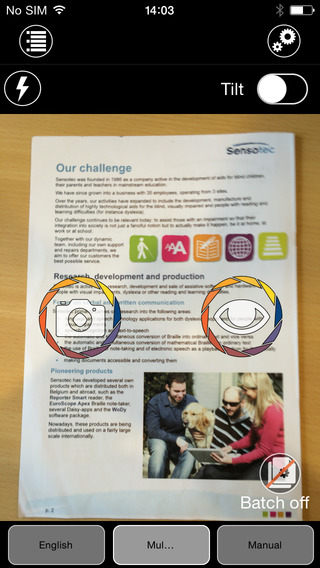
Once a document is properly framed, only one more step is necessary to start reading the document. Simply press the take picture button and within seconds the app will recognize the text within the document using optical character recognition (OCR) and begin reading it with text-to-speech. No need to crop or adjust the image, once the picture is taken the app does all the work. All recognition is done locally on the device so personal data is never transmitted over the internet.

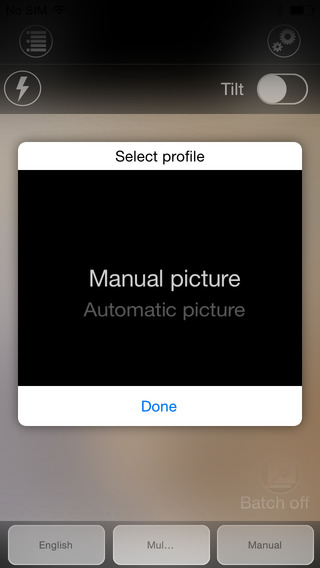
The KNFB Reader app has a number of features that help users capture images of text. For users who are blind and visually impaired the app offers a "field of view report" which offers spoken feedback to help frame the document in the view finder. This feature will let a users know how many corners of the document are within the field of view and if the document is tilted. In addition, the app offers automatic picture taking mode which will automatically snap a picture of a document when it is properly framed.  The app also includes the ability to capture multi-page documents with batch mode. The field of view feature worked well with loose paper documents, but I did not have success using the automatic capture feature with books.

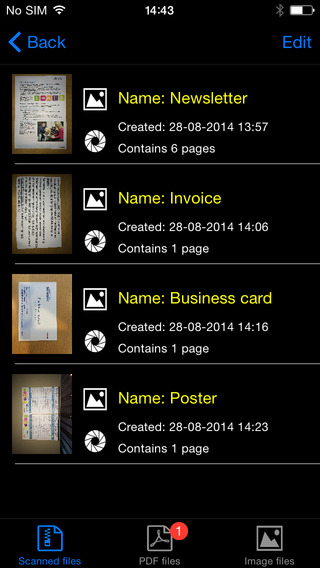
In addition to using the device's built in camera to capture images, users can also import image based PDF documents and JPG files to be recognized with the app. For example, using the "open in" feature of Google Drive will allow a user to import an image to be recognized and read with KNFB Reader.

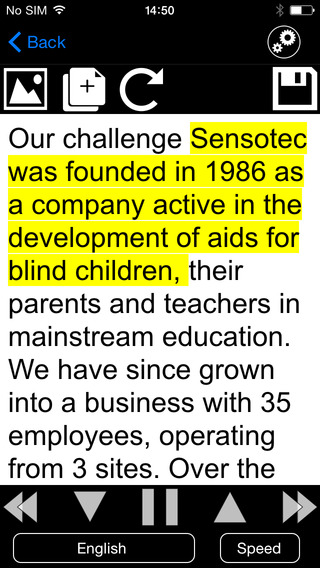
Text is can be highlighted word-by-word or line-by-line as it is being read aloud by the text-to-speech voice. Users can adjust the layout and appearance of the text and change the speaking rate of the text-to-speech voice. Only the default iOS text-to-speech voice is available, so users hoping to use another voice will have to export the text to another app. The built-in text reader also lacks the ability to highlight or annotate the document, so once again users looking for this functionality will need to export the text to a different app.

While the KNFB Reader app is faster and more accurate than competing products such as Prizmo, Prizmo does include some useful features that KNFB Reader does not. Prizmo, which is significantly less expensive, includes the ability to export PDF documents. This means a user can take a picture of a document, have the text recognized and any images on the page retained by Prizmo, so that it looks identical to the printed page. KNFB reader, by contrast strips away images, and only retains the printed text. If PDF export is an important feature to you, Prizmo may be a better option. Click here to learn more about Prizmo. 

If you are looking for a text recognition app with great speed and accuracy, I think you will be quite pleased. If The KNFB reader fits your budget, you won't be disappointed. KNFB Reader costs $100, to download the app from the App Store click here. It is compatible with the iPhone 4S and newer and the iPod touch fifth generation. Click read more below to view screen shots of the app.


Tuesday, 23 December 2014

MotionSavvy's UNI Tablet: A Break Through in Sign Language Communication


For people who use sign language to communicate, interacting with people who do not know sign language can be an enormous challenge and create barriers for people who are hearing impaired. Until now, the best alternative might have been writing out notes on a piece of paper. However, an upcoming product from a company called MotionSavvy hopes to offer a better solution.

The solution does not look like the advanced piece of assistive technology that it is, but rather looks like a thin tablet with a Leap Motion device attached to the front. The Leap Motion senses the motion of the users hand to recognize signs using multiple cameras. Once the table recognizes the signs it can display the signed phrase as text on screen or even as spoken words with text-to-speech. This allows the other person that does not know sign language to understand what is being signed. Then the other person can speak into the tablet and speech recognition technology will allow the words to appear on the screen for the hearing impaired person to read.

This technology can allow deaf and hearing impaired users to communicate with other people that do not know sign language without an interpreter or slow hand written messages. However there are some limitations that should be expected from a first generation product such as the UNI. Users will not be able to use their existing tablet with the software and will need to purchase both the Leap Motion device and accompanying Windows tablet and case through MotionSavvy. Also, the system may have difficulty interpreting the nuances of different sign language styles. Additionally only American Sign Language (ASL) will be supported initially. Luckily, MotionSavvy will include a feature to allow people to teach the device how to recognize new signs. With a feature called CrowdSign, the signs imported by one user can be shared with other users of the system. This will allow the library of recognizable signs to increase quickly provided users are willing to create and share their imported signs. However, because of the upkeep needed to maintain the CrowdSign features, users will need to pay a monthly fee to use the UNI tablet.

The MotionSavvy UNI tablet is expected to be released in early 2015. At this time, details on pricing are unclear, but MotionSavvy has said that the UNI will sell for more than $500 when released.

Monday, 22 September 2014

New in iOS 8: Hands-Free Siri and Improved Dictation


Apple's voice activated features have received some new features as part of iOS 8. Siri is a virtual voice activated personal assistant that can answer your questions, call your friends, check the weather, and much more.  Now it can  be activated hands free by saying, "Hey, Siri." Previously, users would have to press and hold the home button to activate Siri.

The new feature will allow people with physical disabilities to easily activate Siri. The hands-free activation feature does have one major caveat: the device must be plugged in and charging. Users who need or want to access this feature on- the- go can purchase a battery case to utilize this feature. It is possible that future iOS devices will not require a power source to use the "Hey, Siri" feature.

In addition, when dictating a question to Siri or dictating text into an app the recognized words appear almost instantly after being spoken. To use dictation bring up the keyboard and then press the microphone icon next to the space key. With words appearing as you speak it is easier to identify mistakes which makes the dictation process faster. Dictation can be a useful feature for people who struggle with spelling and people who have difficulty using a keyboard. These features are available for devices running iOS 8.

Saturday, 20 September 2014

New in iOS 8: Greyscale Mode

Altered image not an iOS 8 screenshot

iOS 8 includes a new greyscale mode that could benefit people with visual impairments. The new mode is included in addition to inverse color which was previously available. The new option will reduce the bright colors and possibly reduce glare to make the screen easier to see. Greyscale and inverse color can be enabled simultaneously for further visual changes. Even for people without visual impairments greyscale maybe made the screen slightly easier to view outdoors.

To enable greyscale navigate to Settings > General > Accessibility > Greyscale. Please note that the above screenshot is an altered colored screenshot.

Friday, 19 September 2014

New in iOS 8: Improved Guided Access with Timers and Touch ID Integration


Guided Access is one of the many iOS features being enhanced in iOS 8. Guided Access is used to keep a someone on a single app using  a password. For example, if you want your child to read a book and not watch a video you can lock them into the reading app, eliminating the ability to navigate to other apps. With Guided Access enabled, a child or student will need a passcode in order to enter another app. To learn more about Guided Access click here.
One of the enhancement allows users to end a Guided Access session with their finger print using Touch ID. Similar to how third-party developers can implement Touch ID authentication, Guided Access will also take advantage of finger print reading technology. Instead of entering a passcode, users with a Touch ID enabled device will be able to end the session simply by placing their finger on the Touch ID sensor. This feature will simplify the processes of ending Guided Access and potentially eliminate the frustration resulting in forgotten passcodes.

The other enhancement allows students and parents to set a time limit. After the time expires the app will not respond until the correct passcode or finger print is entered. Periodically a small message appears showing how much time is remaining. This feature could be perfect for test taking by ensuring students stop answering questions after the allotted time expires, or for setting a time limit for playing games- when the time limit is reached, the app will not respond.

To enable Guided Access navigate to Settings > General > Accessibility > Guided Access.

Thursday, 18 September 2014

New in iOS 8: Built-in Braille Keyboard for Six-Dot Input


iOS 8 includes enhancements to VoiceOver, the built-in gesture based screen reader for people with visual impairments. One of the improvements is a new built-in Braille Keyboard for Six-Dot input. The new feature is similar to the BrailleTouch app released a few years ago with one major difference; the built-in option can be used to enter text into any app directly. The option can be enabled in the VoiceOver rotor. The Braille keyboard will offer VoiceOver users who are familiar with Braille an alternative, and possibly much faster text entry method. iOS 8 will also offers third-party keyboards such as Fleksy which could also offer significantly faster text input for VoiceOver users.

Once you turn the Braille keyboard on six positions will appear on screen representing the six Braille dots. When the device is held with the screen perpendicular to the floor it automatically enters screen away mode. When using this mode the user faces the screen away allowing three fingers from each hand to contact the screen. As the user begins to type the six virtual dots automatically reposition themselves to compensate for changes in your grip. The dots can also be recalibrated by holding down the three right hand fingers and then the three left hand fingers immediately after. This positions the dots directly under your fingers.

When the device is set on the table or another flat surface the Braille keyboard enters tabletop mode. This mode would seem to be ideal for an iPad can can also be used on smaller devices. It does take some care to ensure that the keyboard does not switch between tabletop and screen away mode accidentally. In both modes typing did seem difficult on the small screen, but some practice seemed to improve typing speed. This new option allows typing with contracted or uncontracted Braille. When typing a swipe right adds a space and a swipe left deletes the last character typed. This new method of typing is very sensitive a will likely require practice before mastering. If you use this feature frequently, it maybe helpful to purchase a case that boarders the screen to avoid trying to type on the bezel.

To enable the Braille keyboard go to Settings > General > Accessibility > VoiceOver > Rotor > Braille Screen Input. Then, when VoiceOver is enabled, rotate the rotor until Braille screen input is selected. It exciting to see all the new third-party keyboard options for iOS 8, but for VoiceOver users, Apple's own Braille keyboard maybe the most exciting of all.

New in iOS 8: Start Text-To-Speech Easily with Speak Screen


iOS 8 includes some new accessibility features and many improvements to existing features. One of the new features is called Speak Screen which allows users to quickly have text on the screen spoken aloud using text-to-speech. Speak Screen is included in addition to Speak Selection which allows users to highlight text and press speak to have content read aloud.

Unlike Speak Selection, which requires text to be highlighted first, before reading the text aloud,  Speak Screen does not require users to highlight the text they wish to have spoken. Especially for longer articles or emails, this highlighting process could be time consuming and frustrating.

Speak Screen solves the problem by speaking all text on the screen with a simple two-finger swipe down from the top of the screen. After swiping down with two fingers, text starts to be read aloud with text-to-speech, and the Speak Screen menu appears on top of your current app. This menu allows you to stop and start speech, adjust the text-to-speech speaking rate, and navigate through the text being spoken.  Instead of having to re-highlight text if you want to hear a paragraph again, Speak Screen offers simple navigation buttons. The menu can also be hidden to allow full view of the screen and accessed again through a small floating button. Just like Speak Selection, Speak Screen has the option to highlight text as it is spoken, making it easier for sighted readers to follow the text as it is being spoken.
Just like all of the accessibility features in iOS 8, Speak Screen can use the Alex text-to-speech voice which many users prefer. While Alex is a very high quality text-to-speech voice beware, it takes up almost one gigabyte of storage. Speak Screen can also be activated through Siri by saying "speak the screen." To enable Speak Screen on a device with iOS 8 go to Settings > General > Accessibility > Speech and then toggle on Speak Screen. Speak Screen is only available for devices running iOS 8 or higher.

Wednesday, 17 September 2014

New in iOS 8: Vastly Improved Zoom


In previous versions of iOS, zoom was only  a simple full screen magnification. With iOS 8, Apple has vastly improved zoom with partial screen window zoom, filters, and smarter magnification options. Zoom is a vital feature for people with low vision and its new features in iOS 8 makes it even more useful.

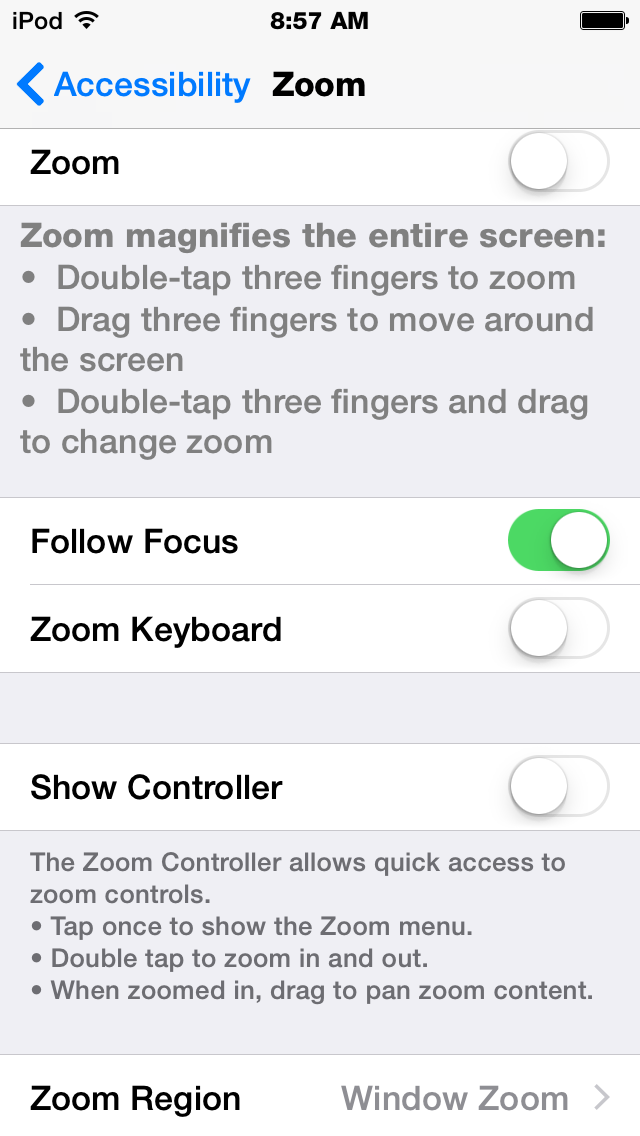
One of the most noticeable enhancements is the ability to magnify certain areas of the screen while leaving the rest of the screen unmagnified. As opposed to full screen zoom, the zoom lens allows for more easy navigation while still allowing certain important areas to be magnified. Users can change the size of the magnified area and pan around the screen in order to magnify different areas. An option is available to add a zoom control to the screen which acts like a virtual joystick for controlling which areas of the screen are magnified.Within the magnified area, users can apply filters to make viewing easier.  The filters available are inverse colors, greyscale, low light, and greyscale inverse.


As pictured above, iOS 8 allows users to choose not to magnify the keyboard. This can make typing on software keyboards much easier while still allowing the text being entered to be enlarged. When the keyboard is magnified some keys are cut off requiring panning to type, iOS 8 eliminates this problem. Zoom also includes the ability to follow the VoiceOver cursor focus. Meaning when the VoiceOver cursor is focused on an app or button, that app or button will be enlarged in the zoom window.

These new zoom options are just one of many exciting accessibility enhancements included in iOS 8. The improved zoom will benefit many users with visual impairments and is a huge improvement over zoom in iOS 7. To enable zoom go to Settings > General > Accessibility > Zoom. For more screenshots of zoom in action click read more below.